Free app · November 24, 2026 · Your file stays on your computer
Every December a music app tells people what they listened to, and they share it. Your order history can do the same thing: 38 bottles, a favorite Pinot, $226 saved as a member. Drop in the order export your platform already gives you and get one line per customer, ready to mail merge into a personal year-end email. For wine clubs, mug clubs, bottle clubs, and shop loyalty programs.
- Your file stays on your computer. Your browser reads it and does the adding up. The file is never uploaded.
- Only the totals are saved. Your account keeps the counts and dollar totals, never a customer's name, email, or what they bought.
- Never put into Claude or any AI. No AI model reads your file. The rules run as plain code in your browser.
What you get
Here is the output, on made-up numbers.
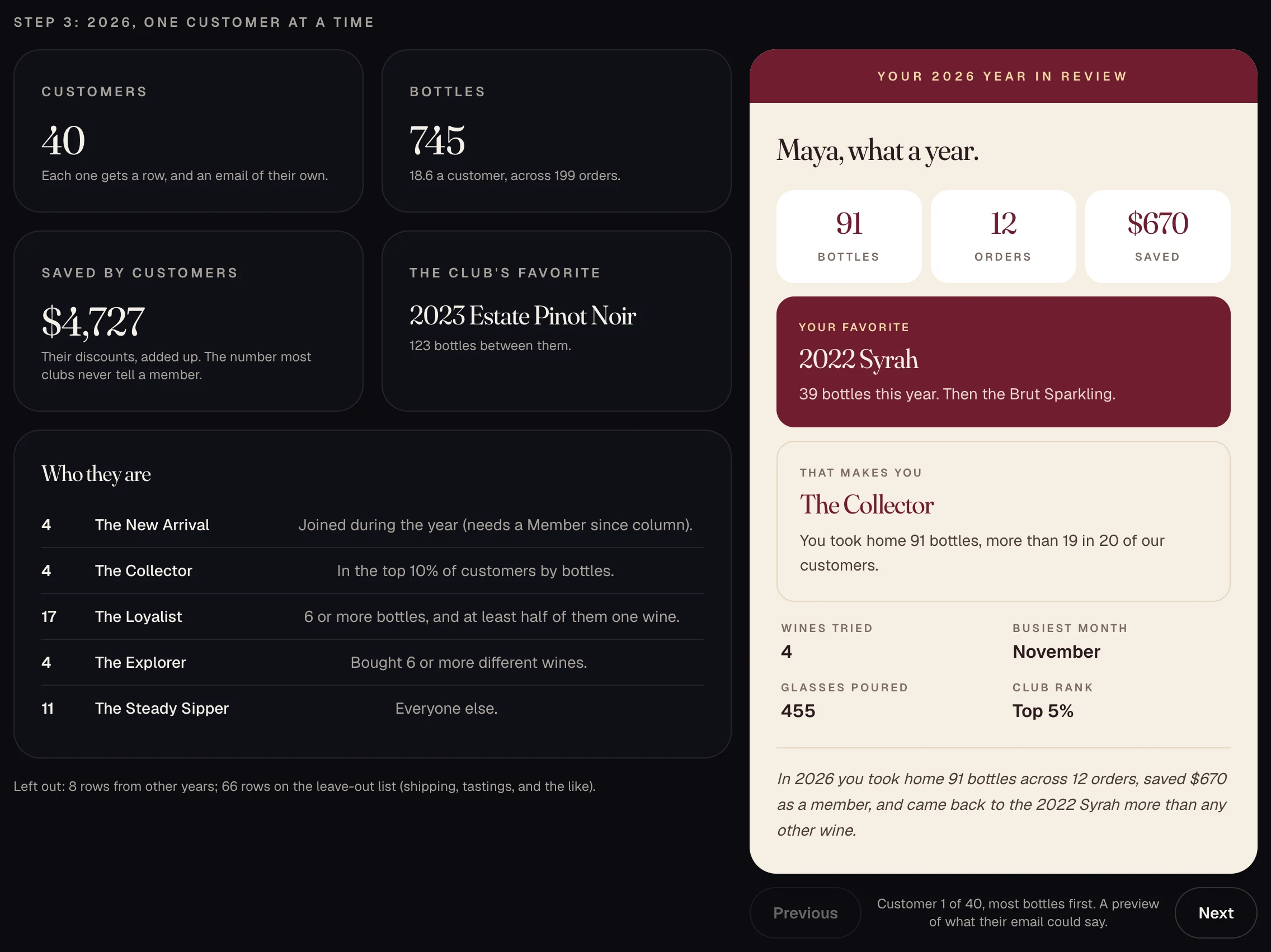
See it before you sign in or type anything. Every picture below is the app working on its built-in sample winery: 40 made-up customers and their 2026 orders, no real names.
On your screen
The file you download
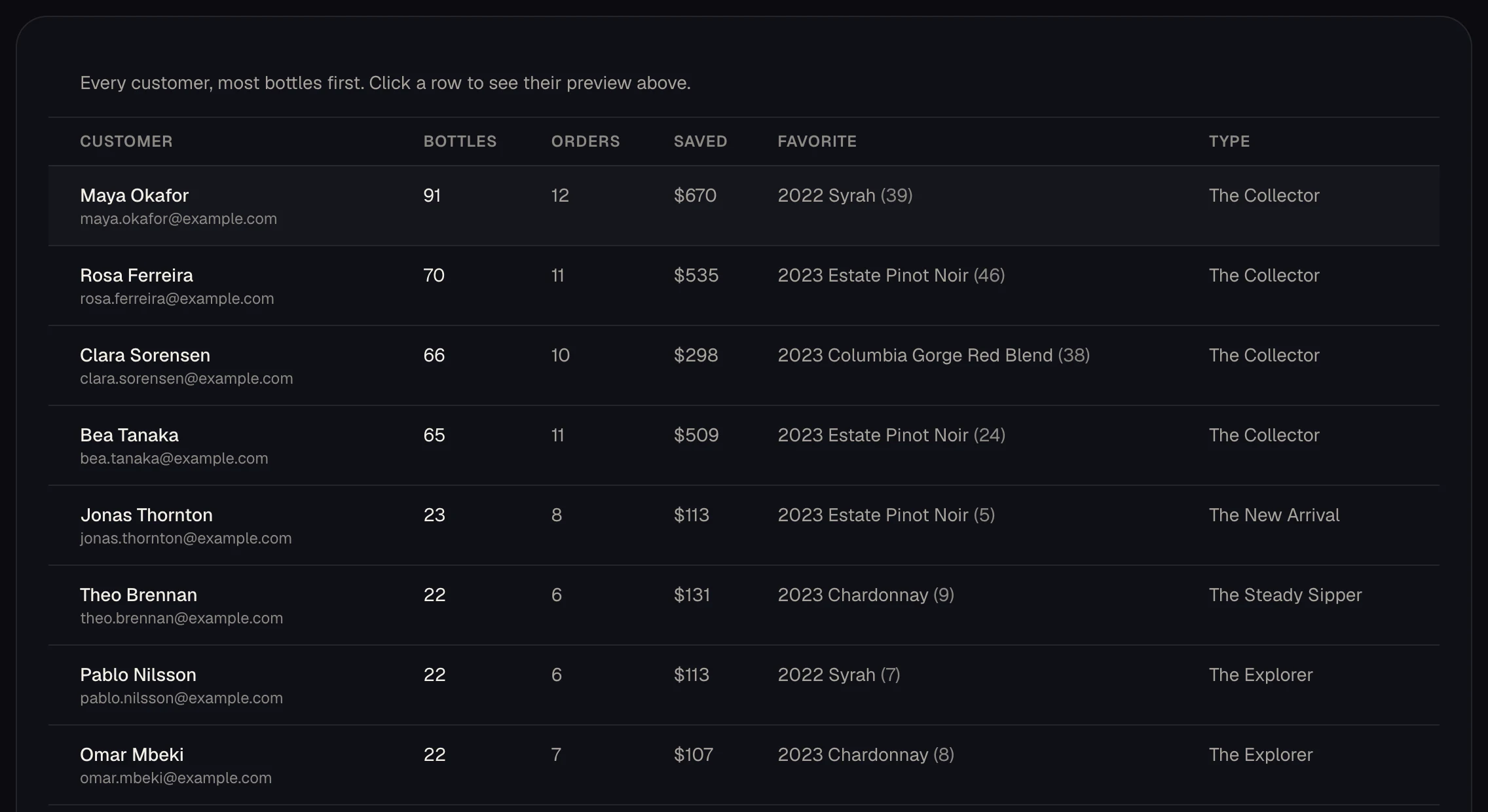
Press “Download the mail-merge sheet (CSV)” and you get a spreadsheet file. One row per customer with their bottles, orders, money saved, favorite wines, club rank, member type, and a summary sentence, ready to import as custom fields.
| A | B | C | D | E | F | |
|---|---|---|---|---|---|---|
| 1 | First name | Last name | Year | Bottles | Orders | |
| 2 | maya.okafor@example.com | Maya | Okafor | 2026 | 91 | 12 |
| 3 | rosa.ferreira@example.com | Rosa | Ferreira | 2026 | 70 | 11 |
| 4 | clara.sorensen@example.com | Clara | Sorensen | 2026 | 66 | 10 |
| 5 | bea.tanaka@example.com | Bea | Tanaka | 2026 | 65 | 11 |
| 6 | jonas.thornton@example.com | Jonas | Thornton | 2026 | 23 | 8 |
| 7 | theo.brennan@example.com | Theo | Brennan | 2026 | 22 | 6 |
| 8 | pablo.nilsson@example.com | Pablo | Nilsson | 2026 | 22 | 6 |
| 9 | omar.mbeki@example.com | Omar | Mbeki | 2026 | 22 | 7 |
| 10 | emil.okoye@example.com | Emil | Okoye | 2026 | 21 | 7 |
| 11 | owen.reyes@example.com | Owen | Reyes | 2026 | 20 | 5 |
| 12 | arlo.ulrich@example.com | Arlo | Ulrich | 2026 | 19 | 6 |
| 13 | daniel.lindqvist@example.com | Daniel | Lindqvist | 2026 | 17 | 7 |
| 14 | zoe.voss@example.com | Zoe | Voss | 2026 | 17 | 4 |
Swipe sideways to see every column.
What Claude Code builds from the prompt
We ran the prompt. This is the email it made.
We put the sample winery's sheet in a folder, pasted the app's prompt into Claude Code (Sonnet, November 20, 2026), and answered its questions as a made-up winery with a red, cream, and gold look. These are the previews it saved, each one a different sample customer, untouched. Yours comes out in your own colors with your own logo.
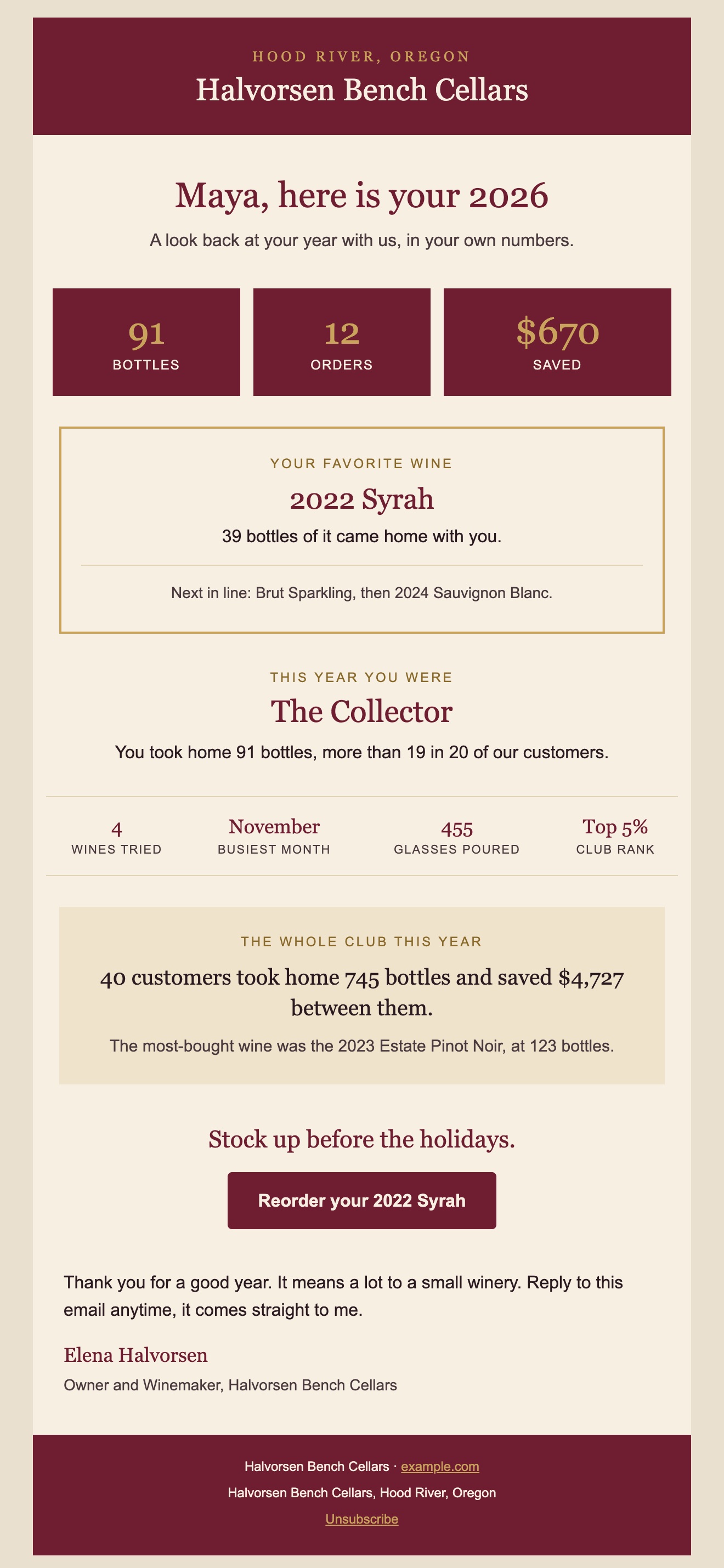
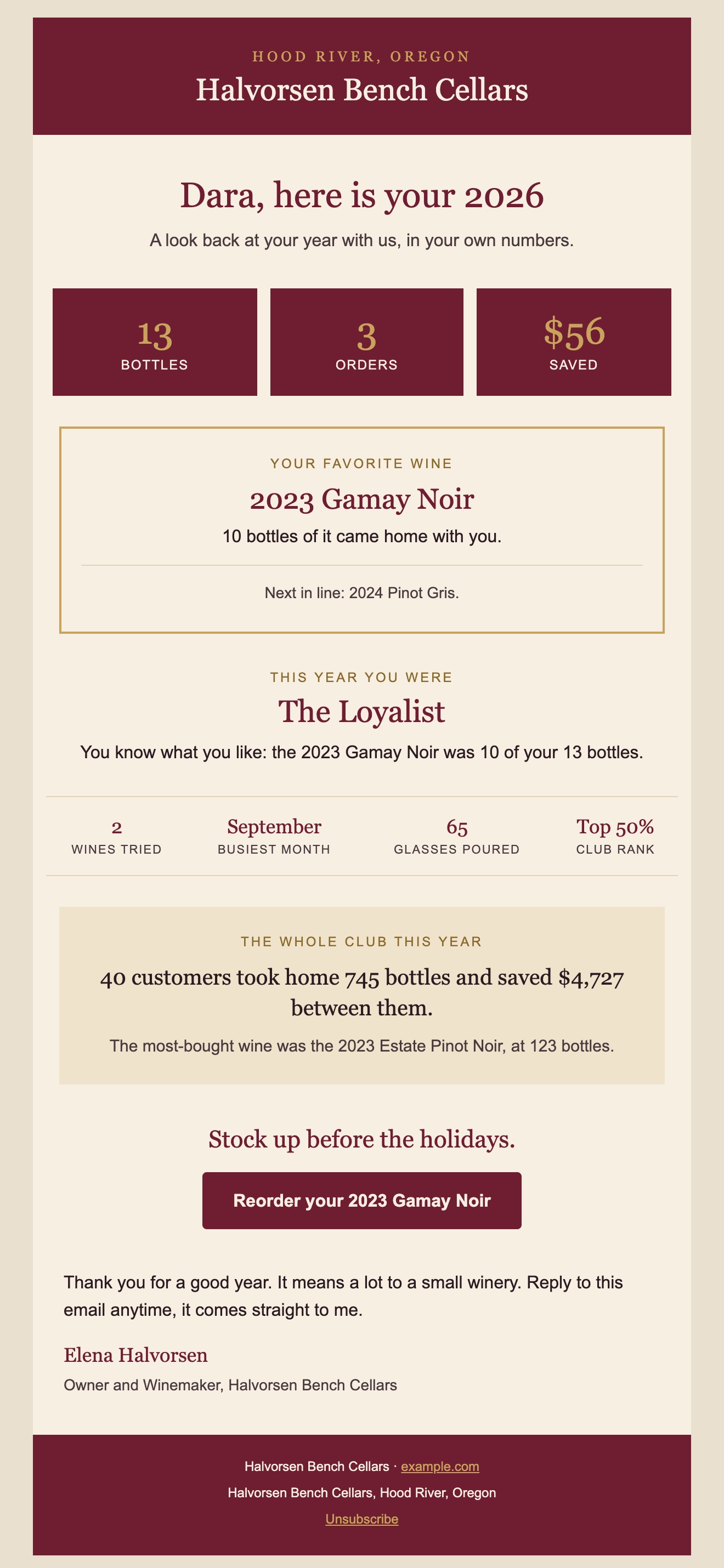
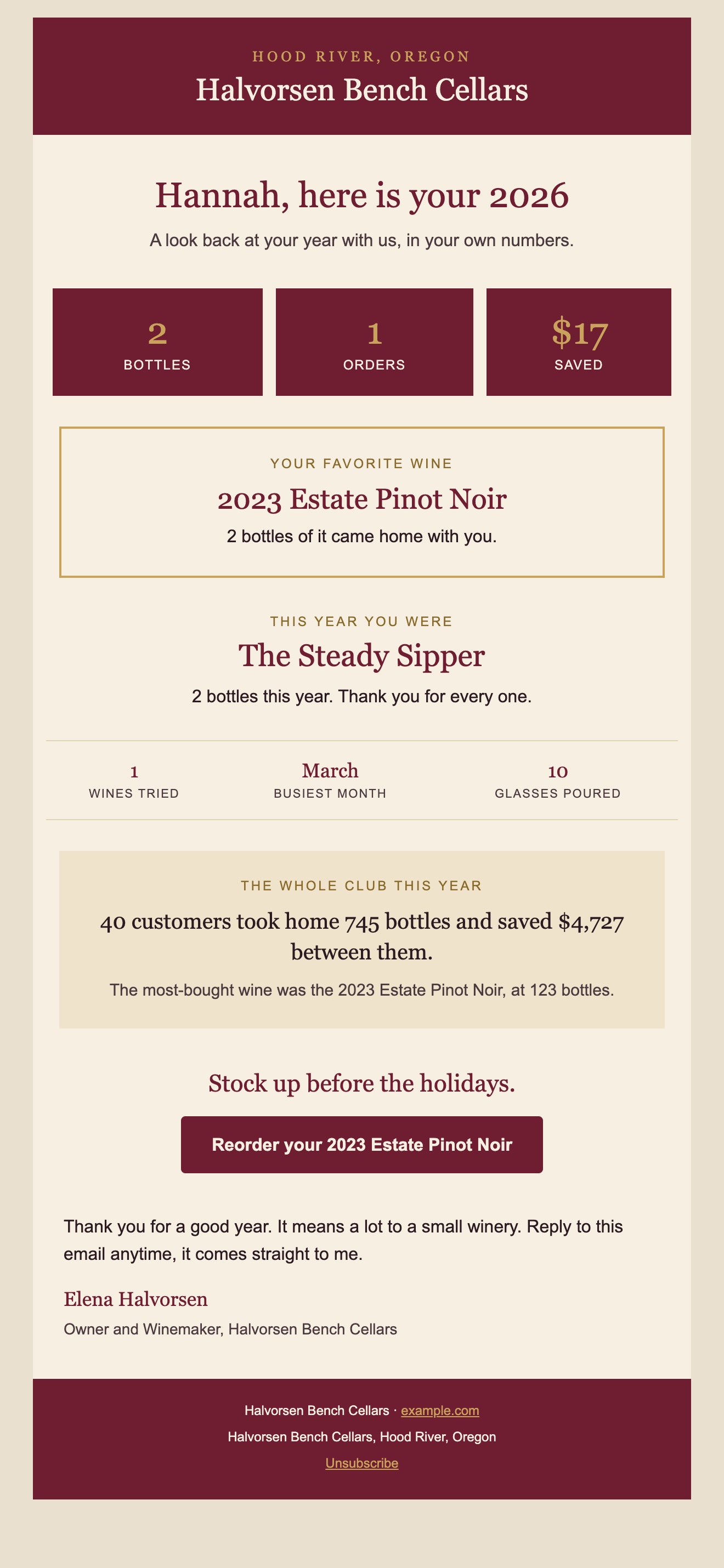
Claude Code designs a little differently each time, and it asks you before it builds.
Step by step
How to use it
Every picture below is the app working on its built-in sample winery: 40 made-up customers and their 2026 orders, no real names.
Export this year's orders and drop the file in.
Sign in with your email (we send a 6-digit code, no password). Then export your orders as a CSV with one row per item sold, from Commerce7, WineDirect, Shopify, Square, or Toast, and drop the file on the box. No export handy? Press Try a sample winery.
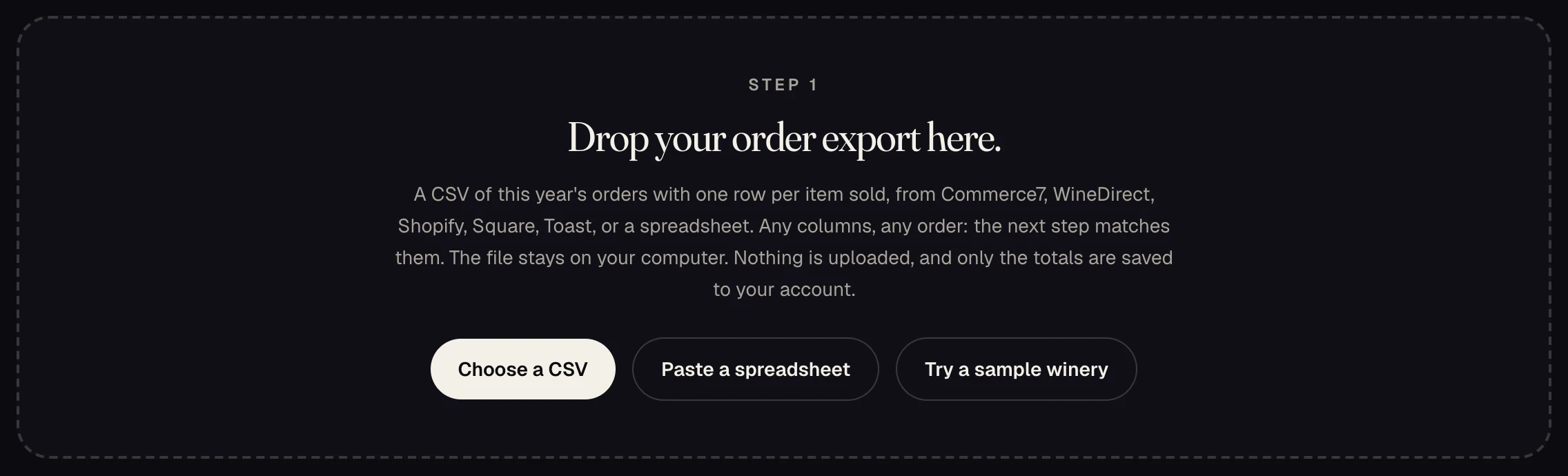
Check the columns and pick the year.
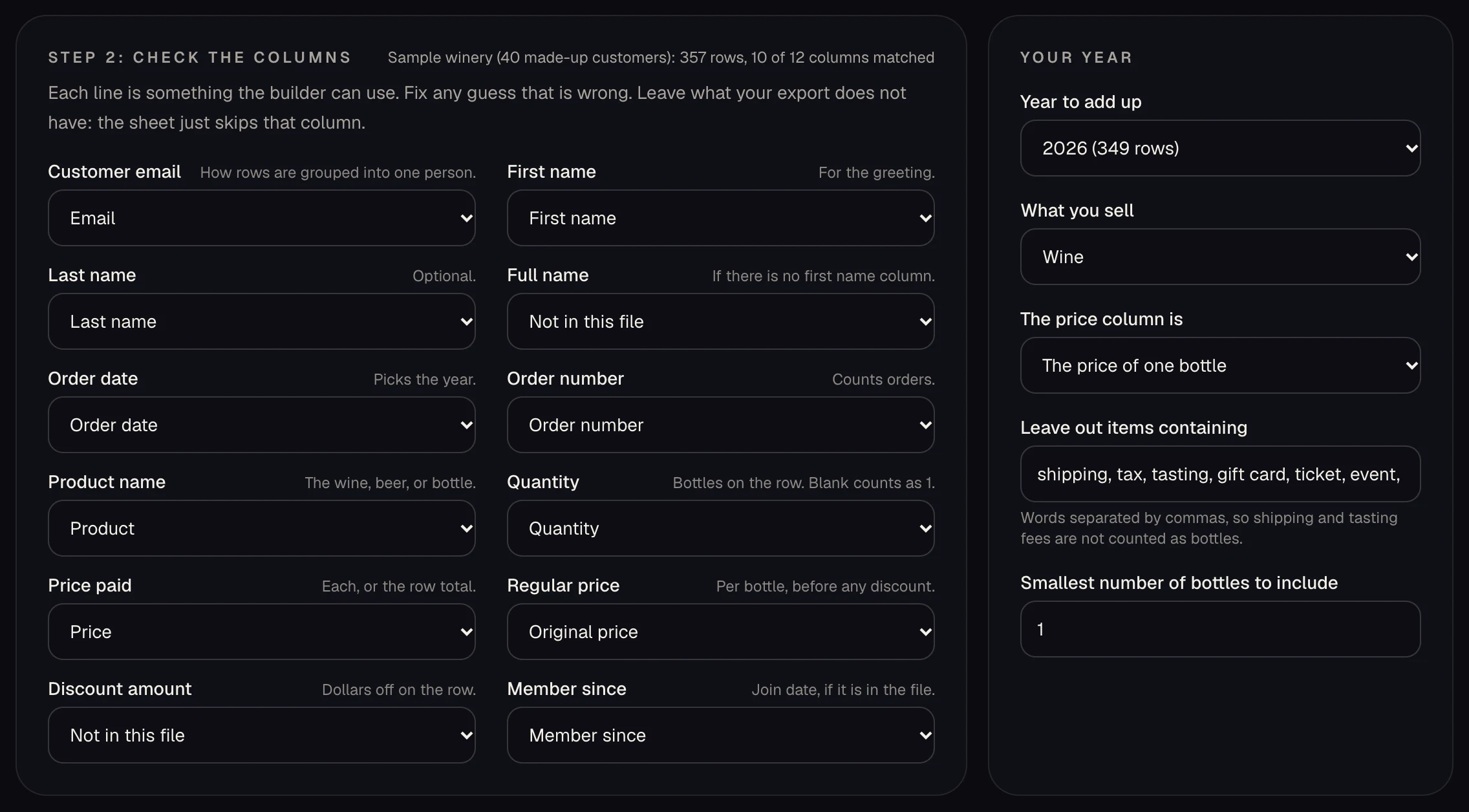
The app matches your columns to what it needs: customer, order date, product, quantity, and price. Fix any match it got wrong, pick the year, and list the words that mark a row as not a bottle. In the sample, 66 shipping and tasting rows and 8 orders from 2025 are left out.
See the year, one customer at a time.
The totals on the left, and on the right a preview of what one customer's email could say. Step through them with Next. The sample's biggest year is Maya: 91 bottles, $670 saved, favorite the 2022 Syrah. Pablo is The Explorer, with 7 different wines.
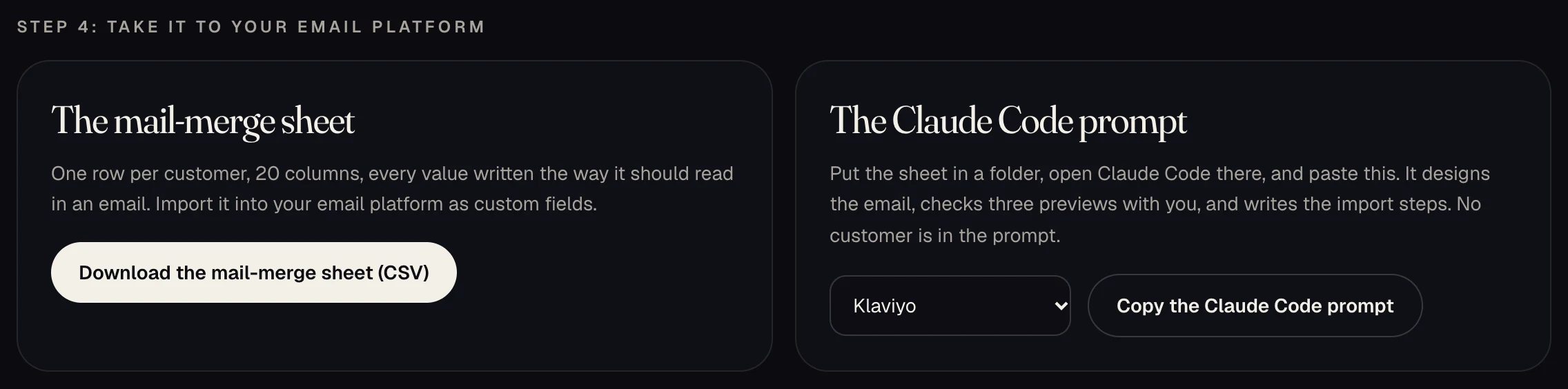
Download the sheet and copy the Claude Code prompt.
The mail-merge sheet has one row per customer and 20 columns, each value written the way it should read in an email. Pick Klaviyo, Mailchimp, or Constant Contact, copy the prompt, and paste it into Claude Code in the folder where you saved the sheet. The totals are saved to your account; the names never are.
Spot check the list.
Every customer, most bottles first, with their favorite and their type. Click any row to see that customer's preview, and check five against your order system before anything goes out.
Your data, in plain words
An order history with names on it is about as sensitive as a file gets, so here is exactly what happens to it, question by question. Every answer is checked against the code that runs this page.
- What do I give the app?
- One spreadsheet of orders with one row per item sold, with whichever of these columns your platform exports: customer email, name, order date, order number, product, quantity, price paid, regular price, discount, and member since. Only a customer (email or name) and a product are required. Leave out card numbers, addresses, and phone numbers. The app has no use for them. The file is read in your browser and never uploaded, and only the totals are saved to your account.
- What is a customer Year in Review email?
- A year-end email built from one customer's own purchases: how many bottles they bought, their favorite wine, what they saved as a member. It's the same idea as the year-end recap a music app sends, made for a wine club, a mug club, or a shop's loyalty program. Every customer gets different numbers, which is why it gets read.
- How do I make a year in review for wine club members?
- Export the year's orders with one row per item, add them up per customer, and mail merge the result into one email template. This app does the adding up: drop in the export and it gives you one row per customer with bottles, orders, money saved, favorite wine, and a summary sentence, ready to import into Klaviyo, Mailchimp, or Constant Contact as custom fields.
- How is money saved worked out?
- From your own file, row by row. If the export has a discount column, the app adds it up. If it has a regular price and a price paid, it takes the difference times the quantity, never below zero. If it has neither, type your club discount and the app works out what the discount was worth from what they paid.
- When should I send a Year in Review email?
- Early to mid December, while people are still buying gifts and before inboxes fill with year-end recaps from everyone else. Run the export through the last full day you can, and say in the email what date the numbers run to.
- Where does the file go?
- Nowhere. Your browser opens it with its own built-in file reader, the adding up runs as code on your computer, and the results are drawn on your screen. There is no upload, and our server never receives the file. The mail-merge spreadsheet is built in your browser too.
- What's saved to my account?
- The totals, never the list: how many customers and bottles, the orders, dollars spent and saved, the year, your settings (the price setting, the club discount, the smallest number of bottles), and which kinds of column your file had. Never a customer's name or email, a product's name, any row from your file, the file's name, or the words you type in the leave-out box. Our server checks every save and refuses one that carries anything else. A saved copy of this app is named by the date and time you saved it, not by anything you type. Open a saved summary later and you'll see those totals. Load the file again to see who's who. Your email address is saved too, because that's how you sign in. Nothing is saved for the sample winery.
- How long do you keep it?
- For as long as you have the account. Delete one saved result on your account page whenever you like. Delete the account there and everything saved under it goes with it, right away: every saved result, signature, and logo. A copy can sit in our nightly database backup until that backup is replaced. Your newsletter subscription is separate. Unsubscribe with the link at the bottom of any issue.
- Is my data put into Claude or any other AI?
- Not by this app. The adding up is a fixed set of rules, written out on this page, and your browser runs it as ordinary code. No AI model, Claude or otherwise, reads your file, your customers' names, or what's saved in your account. The Claude Code prompt the app writes carries the column names and your club totals, and no customer. It goes to your clipboard, not to us. If you then point Claude Code at the spreadsheet to build the email, Claude reads that file on your computer under your own Claude account, so decide that the way you would for any tool your customer list goes into.
- Who can see it?
- On the site, only you can open it, from your account. Jeremy's team can see who has an account and how many results each one has saved, not what's in them. Your results sit in our database with the rest of the site's data. We never sell any of it, share it, or use it to train anything. We also count how often each app is used: the first time an app gives you an answer, your browser sends our server the app's name, and we add one to that app's total for the day. Our visitor counter (Cloudflare Web Analytics, no cookies) records that a page was opened and what kind of browser opened it, and if a link with tracking tags brought you here, the site counts that link too.
- How can I check for myself?
- Open your browser's developer tools on the Network tab and watch while you drop the file: nothing carries it anywhere. You'll see one small save to your account holding counts and dollar totals, and the first time, one request with only the app's name for our use count.
Questions this does not answer? Reply to any issue of the newsletter and ask. It goes straight to Jeremy.
How the numbers are worked out
Every row of your file is one item on one order. A row counts when it has a customer, a product, a quantity above zero, a date in the year you picked, and a product name that isn't on your leave-out list (shipping, tasting fees, gift cards). Rows are grouped by email, or by name when there is no email.
Bottles are the quantities added up. Orders are the different order numbers. The favorite is the product with the most bottles, and a tie goes to the one bought most recently. Money saved is the discount column when your file has one, otherwise regular price minus price paid, otherwise your typed club discount applied to what they paid. Glasses poured is bottles times 5. Club rank is where their bottles put them: top 1%, 5%, 10%, 25%, or half, and blank below that, so nobody is told they came last.
Each customer also gets one of six member types, the first that fits:
- The New ArrivalJoined during the year (needs a Member since column).
- The CollectorIn the top 10% of customers by bottles.
- The Loyalist6 or more bottles, and at least half of them one wine.
- The ExplorerBought 6 or more different wines.
- The RegularOrdered in 6 or more different months.
- The Steady SipperEveryone else.
What is in the sheet
One row per customer, most bottles first. Every value is written the way it should read in an email, so there is nothing to format after the merge. A column your file can't fill is left out.
- EmailWhat your email platform matches the row to.
- First nameFor the greeting.
- Last nameCopied from your file.
- YearThe year the numbers cover.
- BottlesEvery bottle they bought in the year.
- OrdersHow many times they ordered.
- Total spentWhat they paid for those bottles. For your eyes, or for a thank-you tier.
- Money savedTheir discounts added up. Blank when it is under a dollar.
- Favorite wineThe product they bought the most bottles of.
- Favorite wine bottlesHow many bottles of the favorite.
- Second favoriteBlank when they bought one wine.
- Third favoriteBlank when they bought one or two.
- Wines triedHow many different products they bought.
- Busiest monthThe month they bought the most bottles.
- Glasses pouredBottles times 5.
- Club rankWhere their bottles put them. Blank for the lower half.
- Member typeOne of six, from fixed rules.
- Member type lineOne sentence that explains the type with their own numbers.
- Summary lineThe whole year in one sentence, ready to drop into an email.
- Member sinceThe year they joined, when your file has it.
What to export
An order report with one row per item sold, for this year, from Commerce7, WineDirect, Shopify, Square, Toast, or whatever takes your orders. Look for a report called order items, line items, or sales by product, not the order summary: the summary has one row per order and no product names, so there is no favorite to find. A club member list alone won't work for the same reason.
Include every channel a customer buys through (club shipments, the tasting room, online) so the count is their whole year. A brewery runs the same thing on a mug club or taproom loyalty export, and a shop on its loyalty program. Delete any payment card, address, and phone columns before you start.
The Claude Code prompt
The sheet is the hard half. The other half is an email template with a slot for each column and the import into your platform, and that is a good job for Claude Code. Save the sheet in an empty folder, open Claude Code there, and paste the prompt. It reads the file, asks for your logo and colors, looks up your platform's current merge tags, builds the email, shows you three customers' previews, and writes the import steps. It never sends anything. The app writes the prompt for Klaviyo, Mailchimp, or Constant Contact, with your own columns and totals in it and no customer. This is the sample winery's:
I want to send every customer a personal Year in Review email for 2026, the way a music app does in December, and I want you to build it and get it ready to send in Klaviyo.

In this folder is year-in-review.csv, made with the Alcohol Industry Insider Customer Year in Review Builder. It has one row per customer, 40 rows, most bottles first. Every value is already written the way it should read in an email ("$226", "Top 10%"). The columns, each with a made-up example:
- Email: maya@example.com
- First name: Maya
- Last name: Halvorsen
- Year: 2026
- Bottles: 38
- Orders: 9
- Total spent: $1,284
- Money saved: $226
- Favorite wine: 2023 Estate Pinot Noir
- Favorite wine bottles: 12
- Second favorite: 2024 Dry Riesling
- Third favorite: 2022 Syrah
- Wines tried: 7
- Busiest month: October
- Glasses poured: 190
- Club rank: Top 10%
- Member type: The Explorer
- Member type line: You tried 7 different wines this year.
- Summary line: In 2026 you took home 38 bottles across 9 orders, saved $226 as a member, and came back to the 2023 Estate Pinot Noir more than any other wine.
- Member since: 2021

For a "the whole club this year" block: 40 customers, 745 bottles, $4,727 saved between them, the most-bought wine was the 2023 Estate Pinot Noir (123 bottles). The customer, bottle, and dollar totals are the sheet's own columns added up. The most-bought count is across everyone's orders, so it can't be re-added from the sheet: use it as given.

Work through these steps in order. Stop and wait for me wherever a step says to ask.

1. Read the CSV. Tell me the row count, how many rows have no email or no first name, and anything that would read badly in an email: a favorite that is really a SKU code, a product name in capitals, a shipping charge that slipped in as a product. Change nothing yet. List what you found and ask me what to do about each.

2. Ask me for what you need to make it mine: the business name, the logo (a file or a web address), brand colors, the website, who the email is from, and the one thing I want a customer to do at the end (reorder their favorite, book a visit, bring a friend) with the words for the button and the page it links to. Ask before you design anything.

3. Look up Klaviyo's current help pages for three things: how a custom field is written into an email (with what to show when the field is empty), how to import a CSV that updates existing contacts by email and adds custom fields, how to make an email from my own HTML, and the tags it requires in every email (the unsubscribe link and my mailing address). Do not write merge tags from memory. Give me the links you used, and tell me plainly about anything the help pages did not settle, so I can test it.

4. Build the email as one file, year-in-review-email.html. 600 pixels wide, tables and inline styles only so it holds up in Gmail, Outlook, and Apple Mail, readable on a phone, with alt text on any image. From top to bottom: the logo; a headline with the first name and the year; three big numbers side by side (bottles, orders, money saved); the favorite as its own block with how many bottles; the member type with its line; one row of small facts (wines tried, busiest month, glasses poured, club rank); the whole-club block; then the one thing I asked for, as a button. Every personal value is the Klaviyo field for that column. A block whose field is empty for a customer must not show for them: no "$ saved" with nothing after it, no blank second favorite. Also write a plain-text version.

5. Make previews before anything touches Klaviyo. Take three customers from the CSV (the one with the most bottles, one from the middle, and the one with the fewest), swap their real values into the template, and save preview-1.html, preview-2.html, and preview-3.html. Open each and check it: no leftover tag, no empty block, nothing cut off at phone width. Tell me which rows you used and wait for my OK.

6. Write import-steps.md with the exact clicks in Klaviyo, in order: create one custom field for each column (email and name go to the fields Klaviyo already has); import year-in-review.csv so it updates existing contacts by email and never changes whether anyone is subscribed, and say what the import does with a blank cell so an old value never shows up in a new email; make a list or segment of only the people in this file; create the email from the HTML; send a test to me. If I give you an API key, you may create the fields and run the import through the API instead, but show me the plan first and wait for a yes.

7. Give me three subject lines and preview texts that use a customer's own number.

Rules for the whole job: every number in the email comes from the CSV, never a guess. Do not send or schedule the campaign yourself, that button is mine. Do not put the CSV anywhere except Klaviyo. Write in a plain, warm voice with no hype, and no emoji unless I ask.No Claude Code? Paste the same prompt into Claude with the sheet attached. You get the template and the steps, and do the clicking yourself.
What to do with it
Send it in early December with one ask at the bottom: reorder your favorite, bring a friend to the tasting room, or pick your first box of next year. Hold back anyone with only a bottle or two (the smallest-bottles setting does it), since a recap of one bottle reads like a reminder that they left.
Then use the same sheet twice more. Sort by bottles and hand the top twenty to whoever writes thank-you notes. Sort by favorite wine and you have the list for the day that wine's next vintage is released.
Build your own
Want different member types, your own columns, or a version that lives on your laptop? Paste this into Claude and it builds you a copy. Then tell it what your customers would love to see and it adds it.
Build me a single-page web app in one HTML file, no server and no libraries, called Customer Year in Review Builder.

It takes a CSV of orders dropped onto the page, one row per item sold, and lets me match the columns to these fields: customer email, first name, last name (or a full name), order date, order number, product name, quantity, price paid, regular price, discount amount, and member since. Any field but the customer and the product can be missing. Let me pick the year, say whether the price column is per bottle or the row total, type a club discount to use when the file has no discount column, list words that mark a row as not a bottle (shipping, tax, tasting, gift card, ticket, event, deposit, tip, fee, membership), and set the smallest number of bottles a customer needs to be included.

For each customer in the year, work out: bottles (quantities added up), orders (different order numbers, or different order days), total spent, money saved (the discount column; or regular price times quantity minus what was paid, never below zero; or paid times d over 1 minus d for a typed club discount d), the favorite product by bottles with ties going to the most recent, the second and third favorites, how many different products, the busiest month, glasses poured (bottles times 5), a club rank (top 1%, 5%, 10%, 25%, or 50% by bottles, blank below that), and a member type, the first that fits: The New Arrival (joined during the year (needs a member since column)); The Collector (in the top 10% of customers by bottles); The Loyalist (6 or more bottles, and at least half of them one wine); The Explorer (bought 6 or more different wines); The Regular (ordered in 6 or more different months); The Steady Sipper (everyone else). Write one sentence that explains the type with their own numbers, and one summary sentence for the whole year.

Show the totals, a preview card for one customer at a time with Previous and Next buttons, a table of every customer sorted by bottles, and a Download CSV button that gives one row per customer with every value written the way it should read in an email ("$226", "Top 10%"). Start any cell that begins with =, +, -, or @ with an apostrophe. Everything runs in the browser and nothing is sent anywhere.

Then add what my own customers would love to see: [DESCRIBE IT, OR ASK ME].
Work with Jeremy
Want help turning it into reorders?
The recap gets opened. Book a 30-minute strategy session and we'll work out the offer at the bottom of it and what to send the week after.
30 minutes on Google Meet